Welcome back! In Part 2, we’ll delve into some essential concepts that will help you better navigate Linux. Here we’re going to cover file permissions, intermediate commands, the importance of chmod, mastering the art of managing processes and services, and using sudo responsibly.
Understanding File Permissions
File permissions are the gatekeepers of your Linux system, determining who can read, write, or execute files. Let’s break it down with a handy diagram:
+————————-+
| Permissions |
|————————-|
| Owner | Group | Others |
|————————-|
| r w x | r w x | r w x |
+————————-+
- r (read): Allows the reading of the file.
- w (write): Allows the modification or deletion of the file.
- x (execute): Permits the execution of the file (for scripts and programs).
To change permissions, you can use the chmod command. For instance, to give the owner read and write permissions, the command would be:
chmod u+rw filename
You can list the permissions using ls -l or use ls -al to list all files or directories, including hidden files, and all of those files or directories permissions.
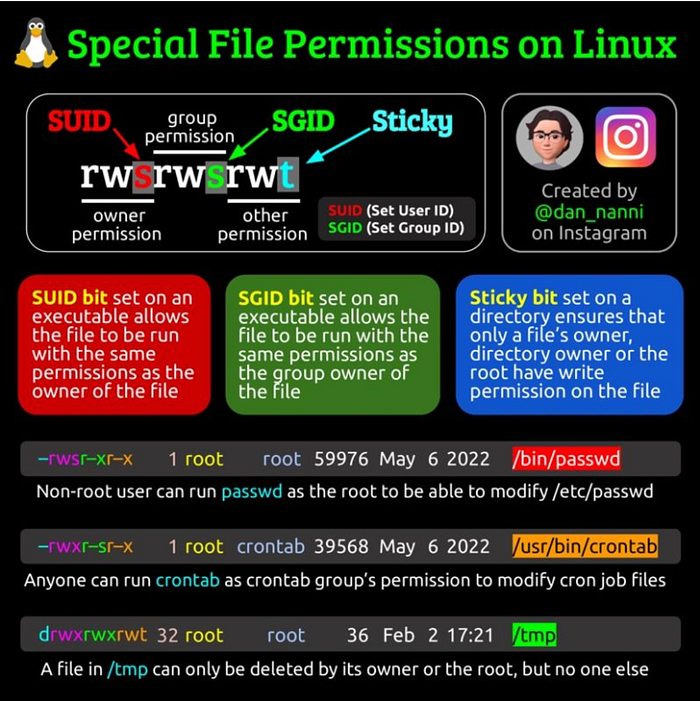
There is also the SUID, SGID, and the Sticky Bit, which indicate permissions that supersede the users granted permissions in the execution of a binary or program in general. Below is a helpful infographic from Dan Nanni on LinkedIn that explains these special file permissions!
Press enter or click to view image in full size
One of the fundamental aspects of Linux system administration is managing file permissions, and the chmod command is your trusty tool for this task. In this section, we’ll explore the intricacies of chmod and demystify the numeric values associated with file permissions.
chmod Syntax
chmod is used to modify the permissions of files, directories, and binaries. The basic syntax of the chmod command is as follows:
chmod [options] permissions file
Here, permissions can be represented in three categories: user (owner), group, and others. You can use letters (u, g, o) along with symbols (+, -, =) to denote permissions. For example:
u+r: Add read permission for the owner.g-w: Remove write permission for the group.o=x: Set execute permission for others.
Numeric Values and File Permissions
Now, let’s delve into the numerical representation of file permissions. The three permission types (r, w, x) are assigned numeric values: read (4), write (2), and execute (1). By combining these values, you can express permissions concisely and powerfully.
Understanding Numeric Notation
Numeric ValuePermission0 — -1 — x2-w-3-wx4r — 5r-x6rw-7rwx
Each digit in the numeric notation represents the sum of the permissions for the user, group, and others, respectively. For instance, chmod 754 filename would mean:
- Owner has read (4) + write (2) + execute (1) = 7
- Group has read (4) + write (0) + execute (0) = 4
- Others have read (4) + write (0) + execute (0) = 4
Practical Examples
Let’s go through a few practical examples to solidify our understanding.
Example 1: Adding Permissions
To add read and write permissions for the owner and read permission for the group, the command would be:
chmod u+rw,g+r filename
The equivalent numeric command is:
chmod 644 filename
Example 2: Removing Permissions
To remove execute permissions for the owner and group, the command would be:
chmod u-x,g-x filename
The equivalent numeric command is:
chmod 444 filename
Managing Processes and Services
Knowing how to manage processes and services is crucial when it comes to Linux. Here are some commands to can help you visualize and manage those processes and services:
- ps: View information about processes currently running.
ps aux
- kill: Terminate a process. Each process is assigned a unique PID (Process ID) that the system uses to define its existence.
kill [process_ID]
- top: Real-time system monitoring. There are also more robust and colorful options such as
htoporbtop
top
There are multiple flags and options you can use with any one of these commands. If you’re interested in finding out more you can use the man pages to find full manuals on specific binaries and commands!
Changing File Permissions
Changing file permissions is essential in both defensive and offensive security. The chown and chgrp commands allow you to change the owner and group of a file, respectively. You
chown newowner:newgroup filename
chgrp newgroup filename
Installing dpkg and tar.gz Files
Package Management is the primary means of installing software in a Linux environment. If you encounter a .deb file (Debian package), use dpkg to install it:
sudo dpkg -i package.deb
For tarballs (.tar.gz), the dance involves two steps: extracting and installing. Tarballs are a method of compressing and packaging software to limit the size of a download.
tar -zxvf archive.tar.gz
cd extracted_folder
./configure
make
sudo make install
Sudo
Ah, the root user — the one with the ultimate power. But with great power comes great responsibility. Use sudo wisely to execute commands with superuser privileges:
sudo command
Always be cautious when wielding root power, as it can impact system stability and functionality. However, you’ll find that when you use certain commands that may need root privileges to, for example, modify system files or utilize low-level ports. This is normal, but always triple-check the commands you’re executing to ensure you don’t make a system-fatal mistake!
Conclusion
Congratulations on leveling up your Linux skills! File permissions, managing processes, installing packages — you’re now equipped with intermediate knowledge that will serve you well on your Linux journey. So long as you’re working in your own environment don’t be afraid to break things! I can’t tell you how many times I had to reinstall or revert to more stable instances when I ran the wrong command.
Thanks for reading! If you enjoyed this post I could use a cup of coffee! It helps me to keep putting out content. Hack the planet!